If you've been wondering how to use Sora to create stunning AI-generated videos, you're in the right place. OpenAI's Sora is one of the most exciting AI video generation tools available, capable of turning simple text descriptions into high-quality video clips. In this guide, we'll walk you through everything you need to know — from accessing the platform to crafting your first video masterpiece.
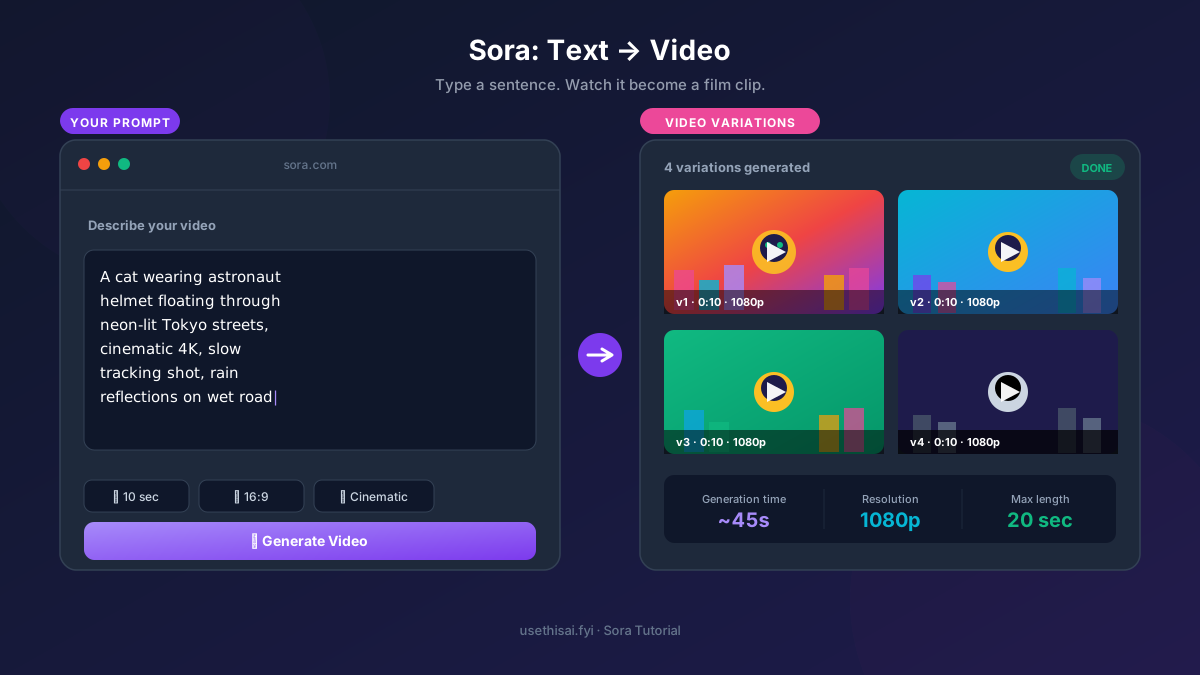
🔧 Tool Introduction: What is Sora?
Sora is OpenAI's text-to-video AI model that generates realistic and imaginative video scenes from natural language prompts. Unlike earlier AI video tools that produced choppy or surreal results, Sora understands how objects interact in the physical world — it respects gravity, lighting, reflections, and motion. This makes the generated footage remarkably coherent and visually compelling.
Sora can create videos up to 60 seconds long, supporting a wide range of styles from photorealistic to animated. It can also extend existing videos, fill in missing frames, or generate looping content. For creators, marketers, and educators, Sora opens up possibilities that previously required expensive production equipment, professional studios, and specialized skills.
The technology behind Sora is based on a diffusion transformer architecture that processes video as a sequence of spacetime patches. This allows it to understand not just what objects look like, but how they move, interact, and behave over time. Sora can generate videos in various aspect ratios (16:9, 9:16, 1:1) and resolutions up to 4K on the Pro plan, making it suitable for everything from TikTok vertical videos to cinematic widescreen content.
Sora's capabilities extend beyond simple text-to-video generation. It can also animate still images, extend existing videos forward or backward in time, create seamless loops, and generate multiple variations of the same scene. These features make it an incredibly versatile tool for content creators who need to produce video content quickly and efficiently.
📋 5-Step Practical Workflow
Follow this step-by-step workflow to create professional-quality videos with Sora, from your first prompt to final export.
Set Up Your OpenAI Account and Access Sora
Visit platform.openai.com and sign up for an account if you haven't already. Sora is available through ChatGPT Plus ($20/month) for basic access or ChatGPT Pro ($200/month) for 4K resolution, 60-second videos, and commercial usage rights. Once subscribed, navigate to the Sora section in the product menu. The interface is clean and intuitive: a text input box at the center, style presets on the side, and your generation history below. Take a moment to explore the settings and familiarize yourself with the layout.
Craft a Detailed and Descriptive Prompt
The quality of your Sora video depends almost entirely on the quality of your prompt. Be specific about the subject, setting, lighting, camera movement, and mood. Instead of "a dog playing," try "a golden retriever puppy playing in a sunlit park with autumn leaves falling around it, cinematic shallow depth of field, warm golden hour lighting, slow-motion capture." Include details about colors, textures, and spatial relationships. The more visual information you provide, the better Sora can interpret your vision.
Select Style, Duration, and Resolution Settings
Before generating, configure your output settings. Sora offers style presets like "Cinematic," "Anime," "Stop Motion," "Realistic," and "Documentary." Choose the one that best matches your creative vision. For beginners, start with 10-15 seconds at 720p — this gives you quick results to learn from without consuming too many credits. As you gain experience, experiment with longer durations and higher resolutions. You can also set the aspect ratio: 16:9 for YouTube, 9:16 for TikTok/Reels, or 1:1 for Instagram.
Generate, Review, and Analyze the Results
Click the generate button and wait for Sora to process your prompt. Generation typically takes 30 seconds to 2 minutes depending on the complexity, duration, and resolution. When the video is ready, review it carefully. Pay attention to motion consistency, object permanence (do objects stay the same throughout?), lighting coherence, and overall visual quality. Note what works well and what could be improved. Sora allows you to generate multiple variations of the same prompt, so you can compare different interpretations.
Refine Your Prompt and Iterate for Better Results
Based on your review, refine your prompt and generate again. This iterative process is the key to mastering how to use Sora effectively. If the lighting was off, add "soft diffused lighting" or "dramatic side lighting." If the motion was too fast, add "slow, graceful movement." If the composition was cluttered, simplify the scene description. Each iteration teaches you how Sora interprets different language, and you'll quickly develop an intuition for what works. Once you're satisfied, download your video in the desired format.
🎬 5 Prompt + Result Examples (实测效果)
Here are 5 real prompt examples showing what Sora can do, from simple to advanced. Each includes the exact prompt used and what you can expect from the output.
⚠️ 3 Common Prompt Pitfalls (用户常踩的坑)
❌ 坑 1:提示词过于笼统
错误示范:"a beautiful landscape"
问题:Sora 不知道你要什么类型的风景、什么季节、什么光线、什么视角。结果往往是模糊的、缺乏特征的画面。
✅ 正确做法:"A misty mountain landscape at sunrise, pine trees in the foreground, soft fog rolling through the valley, cinematic wide angle, realistic style"
❌ 坑 2:一个 prompt 塞太多元素
错误示范:"A dragon fighting a robot in a futuristic city while people run away and aliens watch from spaceships"
问题:太多主体和动作互相干扰,Sora 无法同时处理好所有元素的运动和交互,结果往往是混乱的。
✅ 正确做法:一次只聚焦 1-2 个主体。先做 "A dragon flying over a futuristic city at dusk",再单独做其他元素,后期合成。
❌ 坑 3:忽略物理规律描述
错误示范:"a glass falling and breaking"
问题:Sora 虽然理解物理世界,但如果你不描述具体的物理行为,它可能生成不自然的破碎效果。
✅ 正确做法:"A glass falling from a table, hitting the hardwood floor, shattering into multiple pieces, fragments scattering across the floor, slow motion"
💡 3 Practical Tips
Tip 1: Master the Art of Visual Description
The single most important skill for using Sora effectively is learning how to describe scenes visually. Think like a film director or cinematographer. Instead of just describing what's happening, describe how it looks. Include details about lighting (golden hour, soft diffused, dramatic side lighting), camera movement (slow pan, tracking shot, aerial view), color palette (warm tones, monochromatic, vibrant), and atmosphere (misty morning, bustling city night, serene countryside). A well-crafted visual description can transform a mediocre video into a stunning one. Practice by describing scenes from your favorite movies in writing — this trains your brain to think in visual language.
Tip 2: Use Reference Styles and Artistic Influences
Sora can emulate a wide range of visual styles when you reference them in your prompts. Try adding phrases like "in the style of Wes Anderson" for symmetrical, color-rich compositions, "like a National Geographic documentary" for natural, authentic footage, "cinematic film grain" for a vintage feel, or "Studio Ghibli animation style" for whimsical, hand-drawn aesthetics. You can also reference specific genres: "film noir style with dramatic shadows," "vaporwave aesthetic with neon colors," or "minimalist architectural photography." These stylistic cues help Sora understand the visual language you're aiming for.
Tip 3: Plan for Post-Production and Editing
While Sora generates impressive standalone clips, the best results often come from combining multiple Sora clips in post-production. Plan your video as a sequence of scenes rather than a single long clip. Generate each scene separately with consistent style descriptions, then edit them together using video editing software like DaVinci Resolve, Premiere Pro, or CapCut. This approach gives you more control over pacing, transitions, and narrative flow. You can also use Sora to generate B-roll footage, establishing shots, and transitional elements that you can mix with your main footage.
❓ FAQ
Is Sora available to the public?
Yes, as of 2026, Sora is available through OpenAI's platform with a ChatGPT Plus ($20/month) or Pro ($200/month) subscription. The Plus plan provides access to basic features including 720p resolution and shorter videos, while Pro unlocks 4K resolution, 60-second videos, and commercial usage rights. Access may be limited by region, so check OpenAI's availability page for your country.
How long can Sora videos be?
Sora can generate videos up to 60 seconds in length on the Pro plan. The Plus plan has shorter duration limits. For longer content, you can generate multiple clips and stitch them together in video editing software. Sora also supports extending existing videos forward or backward in time, which can help create longer sequences.
What makes Sora different from other AI video tools?
Sora excels at understanding physical world dynamics, producing videos with consistent motion, realistic lighting, and coherent scene composition that other tools often struggle with. Its ability to maintain object permanence (objects staying consistent across frames) and spatial awareness sets it apart from competitors like Runway, Pika, or Stable Video Diffusion.
Can I use Sora-generated videos commercially?
Commercial usage rights depend on your subscription tier. ChatGPT Pro ($200/month) includes full commercial usage rights for generated content. The Plus plan has more limited commercial terms. Always review OpenAI's content policy and terms of service for the most up-to-date information on usage rights and licensing.
What are Sora's current limitations?
Sora has several limitations to be aware of: it can struggle with complex multi-subject interactions, fast-paced action sequences, and rendering readable text. Characters and objects may change appearance between different clips (though consistency within a single clip is good). Very complex scenes with many interacting elements can produce muddled results. Additionally, generation times can be lengthy for high-resolution, long-duration videos.
🔗 You May Also Need (你可能还需要)
掌握了 Sora 视频生成后,你可能还需要这些工具来完成完整的创作工作流:
- 🎨 How to Use MidJourney — 用 MidJourney 生成视频所需的风格参考图和素材
- 💬 How to Use GPT-4o — 用 GPT-4o 帮你优化 Sora prompt,写出更精准的描述
- 🤖 How to Use Claude — 用 Claude 分析视频脚本和文案