Anthropic's Claude is one of the most powerful AI assistants available today. Whether you need help with writing, analysis, coding, or research, Claude's large context window and nuanced understanding make it a standout choice. In this guide, we'll show you exactly how to use Claude effectively — from getting started to advanced prompting techniques.
🔧 Tool Introduction: What is Claude?
Claude is an AI assistant developed by Anthropic, designed to be helpful, harmless, and honest. The latest Claude 4 model offers a massive 200,000-token context window — enough to process entire books in a single conversation. Claude excels at tasks requiring deep analysis, long-form writing, and careful reasoning.
Unlike some AI tools that prioritize speed over accuracy, Claude is built with a focus on safety and reliability. It's particularly strong at following complex instructions, maintaining consistency across long conversations, and handling nuanced topics with care. This makes it ideal for professionals, researchers, and anyone who needs dependable AI assistance.
Claude comes in several model variants: Claude 4 Opus (the most powerful, best for complex tasks), Claude 4 Sonnet (balanced for speed and capability), and Claude 4 Haiku (fastest, ideal for simple tasks). Each model is optimized for different use cases, and Claude Pro subscribers can switch between them based on their needs.
One of Claude's standout features is its Projects functionality, which allows you to organize conversations around specific topics with shared knowledge bases and custom instructions. This is particularly useful for teams working on long-term projects or individuals managing multiple domains of work.
📋 5-Step Practical Workflow
Follow this proven 5-step workflow to get the most out of Claude, whether you're writing content, analyzing data, or building software.
Set Up Your Account and Choose the Right Model
Visit claude.ai and create a free account. Once logged in, familiarize yourself with the interface. The free tier gives you access to Claude 4 Haiku with limited messages. For heavier use, consider Claude Pro ($20/month) which unlocks Sonnet and Opus models with 5x higher usage limits. Take a moment to explore the settings — you can adjust response length, temperature (creativity level), and enable features like web search.
Craft a Clear and Specific Prompt
The quality of Claude's output depends heavily on the quality of your input. Instead of vague requests like "help me write an email," try something specific: "Write a professional follow-up email to a client who hasn't responded to my last proposal. The tone should be polite but confident, and include a brief summary of our proposed solution." Claude responds best when you provide context, specify the format, and define the tone. Include any relevant background information directly in your prompt.
Upload Reference Materials for Context
Claude supports file uploads including PDF, DOCX, TXT, CSV, and images. Before asking Claude to analyze or work on something, upload the relevant files. For example, if you want Claude to summarize a research paper, upload the PDF. If you need code review, upload your source files. Claude will read the content and use it as context for its responses. This is where the 200K token context window really shines — you can upload entire books or codebases.
Review, Refine, and Iterate
Claude's first response is rarely perfect. Treat it as a starting point. Ask follow-up questions, request revisions, or ask Claude to explain its reasoning. You can say "Make this more concise" or "Add more technical detail" or "Explain your reasoning step by step." Claude maintains context across the entire conversation, so you can build on previous responses. Use the edit button to modify your previous messages if you realize you missed something.
Organize with Projects and Export Your Work
For ongoing work, use Claude's Projects feature. Create a project for each major topic or client, add custom instructions that apply to all conversations within that project, and upload a knowledge base of reference documents. This ensures consistency across sessions. When you're satisfied with the output, Claude can export responses in various formats — copy to clipboard, download as Markdown, or share via a link.
📊 Real-World Test: Messy Document → Organized Report (实测对比)
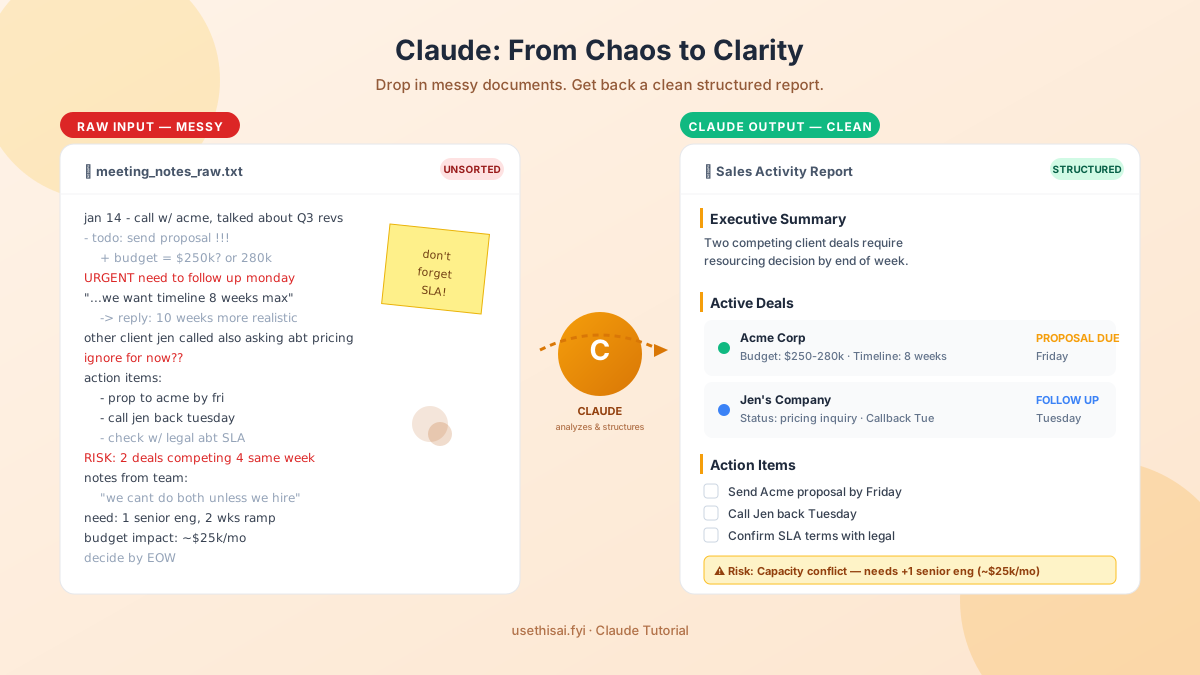
Claude's 200K context window truly shines when processing messy, unstructured documents. Here's a real comparison of what happens when you feed Claude a chaotic research document vs. what it produces.
❌ Before: 杂乱的长文档输入
输入内容:一份 50 页的市场调研 PDF,包含散乱的访谈记录、未分类的数据表格、重复的段落和手写笔记扫描件。传统做法需要人工花 3-4 小时整理。
典型问题:信息分散在不同章节,数据没有汇总,关键结论被埋没在大量无关内容中。
✅ After: Claude 整理后的结构化报告
输出内容:Claude 在 2 分钟内生成了以下内容:
- 执行摘要:3 段话概括核心发现和推荐行动
- 数据汇总表:从散乱表格中提取关键指标,生成对比表格
- 主题分类:将 50 页内容归纳为 5 大主题,每个主题附关键引用
- 行动建议:基于数据得出的 5 条可执行建议
节省时间:3-4 小时 → 15 分钟(含人工审核时间)
💡 2 Tips for Long-Text Processing Efficiency (长文本处理效率技巧)
Tip 1: 使用分层摘要法 (Hierarchical Summarization)
当处理超长文档(如 100 页的研究报告或整本书)时,不要直接让 Claude 一次性总结全部内容。相反,使用分层方法:首先让 Claude 总结每个章节或部分("Summarize Chapter 1 in 3 bullet points"),然后让 Claude 基于这些章节摘要生成整体总结("Now synthesize all chapter summaries into a 500-word executive summary")。这种方法利用了 Claude 的上下文优势,同时确保每个细节都被覆盖。对于 200K 上下文窗口,你可以先上传完整文档,然后逐步引导 Claude 聚焦在不同部分。
Tip 2: 使用结构化模板指令 (Structured Template Instructions)
Claude 对结构化输出格式的响应质量远高于自由格式。创建一个标准化的分析模板,每次处理长文档时都使用相同的指令结构。例如:
"Analyze this document and provide:
1. KEY FINDINGS (3-5 bullet points)
2. DATA HIGHLIGHTS (key statistics with page references)
3. CRITICAL ANALYSIS (what's missing or questionable)
4. ACTIONABLE RECOMMENDATIONS (based on the evidence)"
这种模板化方法不仅提高了 Claude 的输出质量,还让你可以在不同文档之间进行横向对比。你可以将模板保存在 Claude 的 Projects 功能中,每次处理新文档时直接调用。
💡 3 Practical Tips
Tip 1: Use Role-Playing for Better Results
One of the most effective techniques when learning how to use Claude is to assign it a specific role. Instead of a generic prompt, try: "You are an experienced data scientist with expertise in Python and machine learning. Explain the concept of gradient descent to a junior developer." This role-based prompting dramatically improves the quality and relevance of Claude's responses. The model adjusts its vocabulary, depth, and perspective based on the role you assign. For writing tasks, try "You are a senior copywriter at a Fortune 500 company" — the results will be noticeably more polished and professional.
Tip 2: Leverage Multi-Step Instructions
Claude excels at following structured, multi-step instructions. Break complex tasks into numbered steps within a single prompt. For example: "Step 1: Analyze this dataset and identify the top 3 trends. Step 2: For each trend, explain the likely cause. Step 3: Suggest actionable recommendations based on your analysis." This structured approach produces more comprehensive and organized responses. You can also use Claude to help you break down complex problems — ask it to "Create a step-by-step plan for..." before executing each step.
Tip 3: Use Claude's Web Search and Artifacts Features
Claude now supports web search for real-time information (when enabled) and Artifacts for creating and previewing content. When you need current information, enable the web search feature and Claude will browse the internet to find relevant data. The Artifacts feature allows Claude to generate and display code, documents, and visualizations in a separate panel — perfect for previewing HTML, React components, or data charts before using them. These features transform Claude from a simple chatbot into a complete productivity workspace.
❓ FAQ
Is Claude free to use?
Claude offers a free tier with limited messages per day, giving you access to the Claude 4 Haiku model. For heavier usage, Claude Pro ($20/month) provides 5x more usage, access to Sonnet and Opus models, and priority during peak times. Claude Team ($30/month per user) adds shared workspaces and admin controls for organizations.
What is the difference between Claude and ChatGPT?
Claude is known for its longer context windows (up to 200K tokens vs ChatGPT's 128K), nuanced safety features, and strong performance on analysis and writing tasks. Claude tends to be more cautious and thorough, while ChatGPT excels at creative generation and has a broader plugin ecosystem. For tasks requiring deep analysis of long documents, Claude is generally the better choice.
Can Claude write code?
Yes, Claude is highly capable at coding across many languages including Python, JavaScript, TypeScript, Go, Rust, Java, and more. It can generate complete functions, debug existing code, explain complex algorithms, and refactor code for better performance. Claude's large context window makes it particularly good at understanding and working with large codebases.
Does Claude have an API for developers?
Yes, Anthropic offers a comprehensive API available at console.anthropic.com. The API supports all Claude models and features including streaming, file uploads, and tool use. Pricing is per-token, with different rates for input and output tokens depending on the model.
Can Claude browse the internet?
Claude does not browse the internet by default. However, when the web search feature is enabled (available on Pro and Team plans), Claude can search for and retrieve real-time information. This is useful for fact-checking, researching current events, or finding up-to-date data.
🔗 You May Also Need (你可能还需要)
掌握了 Claude 的长文本处理能力后,你可能还需要这些工具来完善你的 AI 工作流:
- 💬 How to Use GPT-4o — 当需要多模态分析(图片+文字+音频)时,GPT-4o 是 Claude 的绝佳补充
- 🎨 How to Use MidJourney — 用 Claude 写 prompt,用 MidJourney 生成配图,完美组合
- 👨💻 How to Use Devin — 让 Claude 设计架构,让 Devin 执行编码